
Many people, or put more appropriately, entrepreneurs who have a website have come across the ‘link not allowed error’ on Instagram. How do I know this? Because I’m one of those entrepreneurs who have gone through the same issue on IG.
In my research on how to fix the ‘link not allowed error’ on Instagram, I realized that many people have also faced the same issue.
It shouldn’t come as a surprise that the platform was my first choice to advertise my business as a small business owner because it was naturally my go-to platform when I need to cool off stress from work. The beautiful pictures I view on the app are enough to set my mood right.
In return, I made sure the pictures of the pieces of jewelry I sell are aesthetically appealing before I post them on the gram.
And, as more and more people came to my dm to ask for my jewelry prices, I thought it’s a good idea to create a website and put my website link on my bio. But unfortunately, Instagram keeps rejecting my website URL – they’ll always send a message like ‘link not allowed error.’
So, I researched it, and I knew the cause of the problem and resolved it. This is why I’m willing to share different methods to fix a ‘link not allowed error’ in case you’re experiencing the same issue.
This article will share a step-by-step method on fixing a ‘link not allowed’ problem and other topics that revolve around it.
How to fix a ‘link not allowed’ Error on Instagram
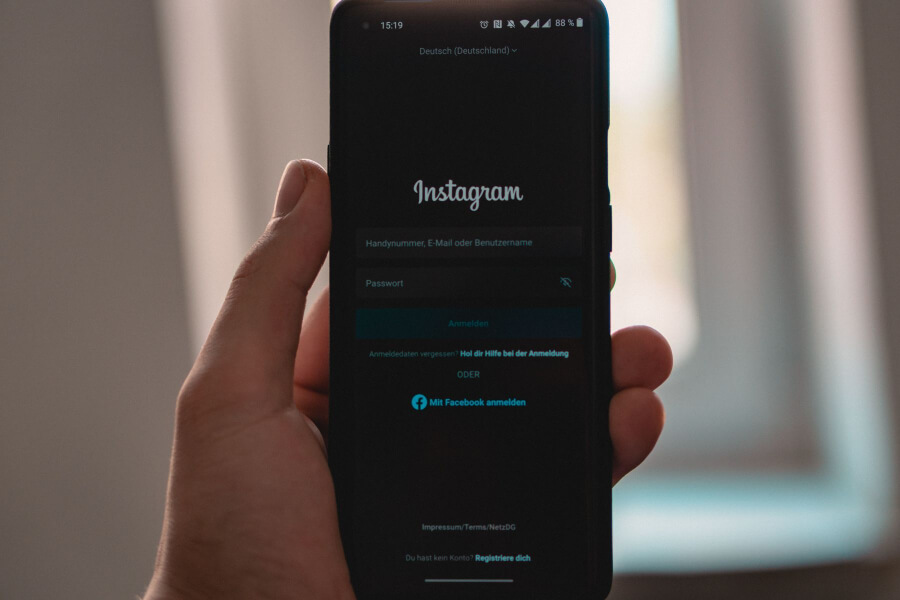
The good news is, there are a variety of methods to fix this issue – the solutions depend on what the link problem is.
When you get a notification like ‘Instagram link not allowed with no link,’ you could be provided with the link that’s not allowed – It could be the IP address. Not to worry, we’ll go over the methods to fix this issue one after the other if the IP address is the cause of the problem.
Method 1: Reboot your WiFi
If Instagram is rejecting your IP address, follow the procedures below to get a new IP address.
- Turn your WiFi router off
- Take a break for about 3 to 5 minutes
- Turn your WiFi back on an MD connect it to your device
- Doing this will automatically give your device a new IP address
- Confirm if the problem is resolved or persists
Method 2: Alter the router configuration
To change the router configuration, here’s a step-by-step method to follow below:
- Go to the homepage of your router and try logging in.
- Choose ‘my network tab.’
- Tap on ‘network connection.’
- Under the rule name, choose broadband (Ethernet).
- Navigate to settings
- Tap on renew > release > apply
- After you’ve followed the procedures above, verify if the ‘Instagram link not allowed’ remains.
Method 3: Remove the link on your bio
Often, people put out the links to their YouTube channels, websites, and other links on their Instagram page – this might cause ‘link not allowed error’ on Instagram. Here’s a step-by-step method on how to fix it.
- Log into your Instagram account on your mobile or personal computer.
- Go to the account section on your profile
- Tap on the ‘edit profile’ in the section
- Remove the link to the website you’ve added
- Save the changes
- Put in the link that caused the ‘link not allowed’ error and check if it persists.
Method 4: By using incognito mode
When you enable an incognito mode on chrome browser, this means that your browsing history, site data, and cookies entered on the site won’t save. However, it can keep bookmarks and downloaded files.
The ‘link not allowed error’ on Instagram can be caused by history or cache on your browser. Using an incognito mode can help you bypass this error on Instagram.
Method 5: Use VPN
You can use a VPN (a virtual private network) to hide or change your address, and the link not allowed error’ will be fixed.
Method 6: How to fix ‘link not allowed error’ on mobile phones
This is quite a common issue as many people log into Instagram on their phones. If you’re having this issue via your mobile phone, you might want to try this method.
- Click on airplane mode on your mobile – keep your device on airplane mode for about 3 to 5 minutes. After this:
- Switch it back to normal.
- Immediately log in to your Instagram page.
- Verify if the issue persists.
Method 7: Another way to fix ‘link not allowed’ on mobile phones
Try restarting your phone. Afterward, log out of your Instagram account, then clear your data on your Instagram app. Finally, reinstall a new Instagram. This method should fix the ‘link not allowed error’ on Instagram.
If the seven methods above don’t fix your ‘link not allowed error’ on Instagram, there are still other methods to go about it. Read on.
What to do When Instagram Blocks your Website Link
Sometimes Instagram blocks websites even when the website isn’t spammy – this could happen to anyone, and it could be frustrating.
If you’re having the issue mentioned above, try the methods listed below to resolve the problem.
Method 1: Try using a URL shortener
Some people who have had the same issue with Instagram used a URL shortener, and they were able to post the link to their website on their pages. You might want to ask, what’s a URL shortener?
A URL shortener like TinyURL is a noteful service that helps transform lengthy URLs to manageable links that might not be more than 20 characters. Mind you, Instagram doesn’t allow all URL shorteners like bitly.
However, services like linktr.ee or iLink offers a landing page that you can put the various links that you will want your Instagram followers to follow.
iLink helps you convert multiple Instagram links into one. You can also merge links that are considered spammy and then use a single URL on your Instagram bio – doing this will fix the ‘link not allowed error.’
Method 2: Facebook debugger
It doesn’t matter whether your URL isn’t supported or blocked by Instagram or Facebook; you can try Facebook debugger to resolve the issue.
Many people have recommended the Facebook debugger for this issue, and it has worked out for many. Try it out.
The Facebook debugger app comes in very helpful for quite a lot of things; one such thing is using the app to pull up the appropriate picture when sharing a web post to Facebook.
Having discussed ways to resolve a ‘link not allowed error’ on Instagram and the steps to take when Instagram blocks your website links, let’s look at the measures to prevent these issues from coming up.
Below is a list of allowed links and those not allowed on Instagram; this will guide you on what links to post and the links not to post.
What links are Restricted on Instagram
Many people wonder why Instagram restricts them from posting links. The reason is not far-fetched. Instagram restricts certain links to protect its users. And also because, as days go by, there’s an increase in spamming on Instagram.
Instagram is quite cautious about links, making it impossible for its users to paste links in their captions. However, there is an opportunity for users who own a business account and with over ten thousand followers to share a link on their Instagram story.
Some of the links restricted on Instagram are listed below:
- Links to websites that contain explicit content are not allowed.
- Links that have appeared in numerous accounts within a short time are not allowed on Instagram.
- Shortened links with sites such as bitly are not allowed because they’re not sure of what you’re linking to.
- Links to a recently registered website.
- A fake URL can be blocked.
- Links intended to pull more people from Instagram to follow you on other services are not allowed.
- Links to telegram or Snapchat are not allowed on Instagram.
- Affiliate links may not be permitted
- Posting a link to an Etsy shop is not allowed on Instagram.
- Sometimes, you aren’t allowed to put a link because of your WiFi connection.
- Sharing the links of the content of other people without their consent could get your account blocked.
Links allowed on Instagram
Having shared the links that are not permitted on Instagram above, it’s essential to further enlighten you on the links allowed on Instagram to avoid getting issues like ‘link not allowed error.’
Below are some of the links that are allowed on Instagram:
- Survey, contests, or sales pages
- A link to your content on YouTube, Daily motion, or some other video platforms
- A link to a coupon or some other free thing is allowed on Instagram.
- A link to your blog is allowed (medium, WordPress, etc.).
- A link to your website – such as a site that contains your services, products, etc
Related Question
How can one share more than a link on your Instagram bio?
Many entrepreneurs have more than one website link that they’ll want their followers to follow, and Instagram wouldn’t allow users to post more than a link on their bio.
You’re most likely going to get ‘a link not allowed error’ if you try this. So, how do you go about it?
We’ll share the methods to go about the issue below.
Using Linktr.ee
Linktr.ee is a straightforward tool that enables users to create a landing page. The tool provides users with a custom link to put on their Instagram profiles.
Once your followers tap on the link, they are directed to a page with multiple links you want them to follow.
The links could be a link to your blog, a sign-up link, a link to your products and services, etc. Users are allowed to share up to five links on the platform.
Below is a step-by-step method on how to go about it.
- Go to Linktr.ee and tap on the green icon that reads ‘sign-up’ free at the top right corner.
- Log in to your Instagram account and grant Linktr.ee access to your account.
- Choose your plan, then verify your details and save to finish up with the sign-up process.
- On your Linktr.ee dashboard, tap on the green button on the screen to enable you to create the links you want to share on your Instagram bio.
- Once the link area opens up, follow the given instructions. It’s relatively straightforward.
- If you wish, you can rearrange the links the way you want them.
- You’ll see a preview button on the right corner of the screen – this will show you how it looks when you follow view it.
- Once you have a Linktr.ee profile link, add the URL on your Instagram bio.
- The last step, save!
Create a webpage on your website
Creating a landing page on your website could be tricky, but it does have its benefits.
If you have a website, you could ask your website designer to create a landing page for your website to add multiple links to the page.
Also, if you need some tools such as analytics, you have to use other packages. Not to mention that you’ll need your web designer’s assistance to add any new links or alter some things on the page.
The good thing about designing a webpage on your website is that you create the landing page the way you want it, and also, you’ll help your site to rank higher on search engines such as Google by directing the traffic to your website.
Changing the link from time to time.
This method is not entirely advisable, however, if you have a special offer for your followers on your website, you can add it, or if you have a new video on your YouTube channel, you can also add the link to your bio.
The only turn-off about this is, you can only target a particular source at a time. And as time goes by, it might become tiring.
Conclusion
According to omnicoreagency.com, in their article on ‘Instagram by the numbers: stats, demographic and fun facts,’
There are about 500 million active users on Instagram, and “73% of US teens say Instagram is the best way for brands to reach them about new products or promotions.”
The quote above buttresses why so many people are so particular about getting their website links on their Instagram bio and getting active on the social media platform to promote their brands.
Are you tired of getting a ‘ link not allowed error’ while adding your website link to your bio?
This could be frustrating, but not to worry, I got you covered. Read up on the different methods highlighted in the article on how to fix the issue, and get it resolved.